
Installation
Contents
Installation#
This page provides installation instructions for all supported platforms. Choose the tab that matches your operating system.
Download Links#
Download NeurEco 5.0 from https://adagos.com/downloads/neureco5/:
Debian:
NeurEco-<version>-linux-debian.tar.gzin https://adagos.com/downloads/neureco5/linux/, for Ubuntu 22.04+ / Debian 12+RedHat:
NeurEco-<version>-linux-redhat.tar.gzin https://adagos.com/downloads/neureco5/linux/, for Red Hat Enterprise Linux 8+ or compatible (GUI: 9+)Windows MSI:
NeurEco-<version>-windows-installer.zipin https://adagos.com/downloads/neureco5/windows/, the installer for Windows 10 / 11 (x64)Windows Portable:
NeurEco-<version>-windows-portable.zipin https://adagos.com/downloads/neureco5/windows/, the portable version for Windows 10 / 11 (x64)Python library: pip installs it from the Adagos package indexes (see Installing the Python API). The wheel files are in https://adagos.com/downloads/neureco5/whl/
Each of these folders holds a SHA256SUMS file that lists the SHA-256 checksums of
its archives or wheels: download it with your files. On Linux, check the files you
downloaded by running sha256sum -c SHA256SUMS --ignore-missing in their folder. On
Windows, run
Get-FileHash <file> in PowerShell: the hash it prints must match the line of that
file in SHA256SUMS, whatever the case of the letters.
Warning
Running NeurEco requires a license for NeurEco 5.0: license files issued for NeurEco 4.x do not work with it. After installation, create the file hardware_info.txt, either in the GUI (Help menu > Hardware id generator), with the command neureco hardwareinfo, or, with the Python package only, with python -m NeurEco.hardware_info. The commands ask for your contact details and write the file in the current folder. Send hardware_info.txt to the Adagos team at support@adagos.com to obtain your license.
Upgrading from NeurEco 4.5 or 4.6? Read Moving from NeurEco 4.5 or 4.6 first.
System Requirements#
Operating system |
Windows 10 or 11 (64-bit); Ubuntu 22.04 or later, Debian 12 or later, Red Hat Enterprise Linux 8 or later, or a compatible distribution (64-bit). Not every part of NeurEco runs on every system: see Compatibility |
Processor |
64-bit Intel or AMD processor (x86-64). ARM processors, including Apple silicon, are not supported |
Memory |
16 GB RAM recommended |
Disk space |
About 7 GB for the installed files, plus, while you install, about 4 GB for the downloaded archive (3.6 GB on Linux) and as much for the files extracted from it (except for the portable version). The extracted Windows installer folder, about 4 GB, stays after the installation |
NVIDIA GPU (optional) |
Compute capability 7.5 or higher, with NVIDIA driver 525.60.13 (Linux) or 527.41 (Windows) or newer; 575.51.03 (Linux) or 576.02 (Windows) or newer recommended. See GPU Setup |
Python (optional) |
Python 3.10 or newer, for the Python library. On Linux, the Python library also needs glibc 2.35 or newer and the C++ runtime of GCC 12 or newer (Ubuntu 22.04 or later, Debian 12 or later, Red Hat Enterprise Linux 10 or later). See Installing the Python API |
Compatibility#
The table shows which parts of NeurEco 5.0 run on each system. The command line is the
neureco command, which runs the engines; on Linux, it comes in the neureco
package and the GUI in the neureco-gui package. The Python library installs with pip. An
exported FMU holds both Windows and Linux binaries and runs in a simulation tool on the
systems marked below, whichever system it was exported on.
System (64-bit) |
Command line |
GUI |
Python library |
Exported FMUs |
|---|---|---|---|---|
Windows 10 or 11 |
Yes |
Yes |
Yes |
Yes |
Ubuntu 22.04 or later |
Yes |
Yes |
Yes |
Yes |
Debian 12 or later |
Yes |
Yes |
Yes |
Yes |
Red Hat Enterprise Linux 10 |
Yes |
Yes |
Yes |
Yes |
Red Hat Enterprise Linux 9 |
Yes |
Yes, with EPEL and CRB |
No |
Yes |
Red Hat Enterprise Linux 8 |
Yes |
No |
No |
Yes |
Rocky Linux and AlmaLinux behave like the Red Hat Enterprise Linux version they are built from. On Red Hat Enterprise Linux 9, the GUI takes Qt6 from the EPEL repository, which needs the CRB repository: see the RedHat tab below. On Red Hat Enterprise Linux 8, the GUI does not install, because neither the system nor EPEL provides Qt6. On Red Hat Enterprise Linux 8 and 9, pip does not install the Python library, because it needs glibc 2.35 or newer and the C++ runtime of GCC 12 or newer. The Linux binaries of an exported FMU need glibc 2.28 or newer, so they also run on other Linux distributions that have it.
Platform-Specific Instructions#
Installation with Administrator Privileges
Extract the whole archive NeurEco-<version>-windows-installer.zip into a
folder. The extracted folder NeurEco-<version>-windows-installer holds the
installer, NeurEco-<version>-x86_64.msi, and several .cab files
(cab1.cab, cab2.cab, …), which hold the files to install. Keep the
.cab files in the same folder as the .msi file, and start the .msi file
from there. Keep this folder after the installation: Windows needs it to repair
the installation or to add or remove one of its parts.
Launch the MSI installer and follow the instructions:
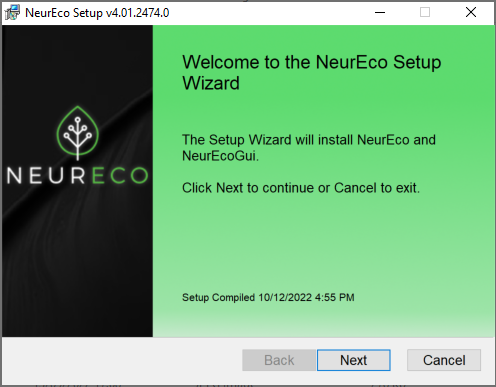
Step 1: Welcome screen# |
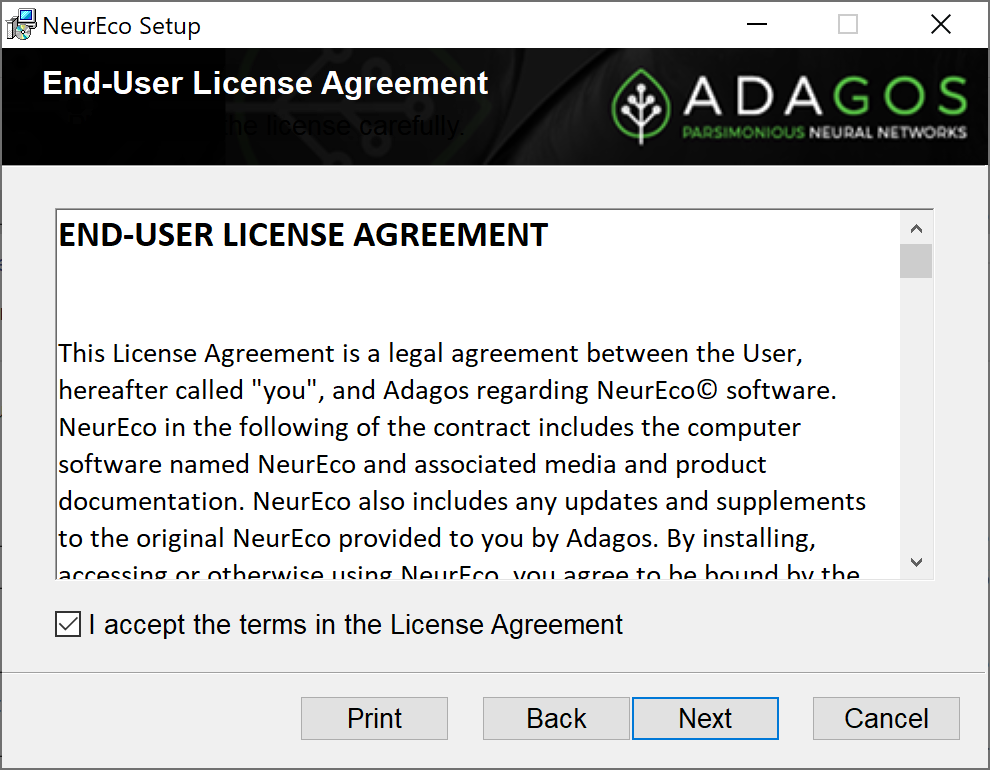
Step 2: License agreement# |
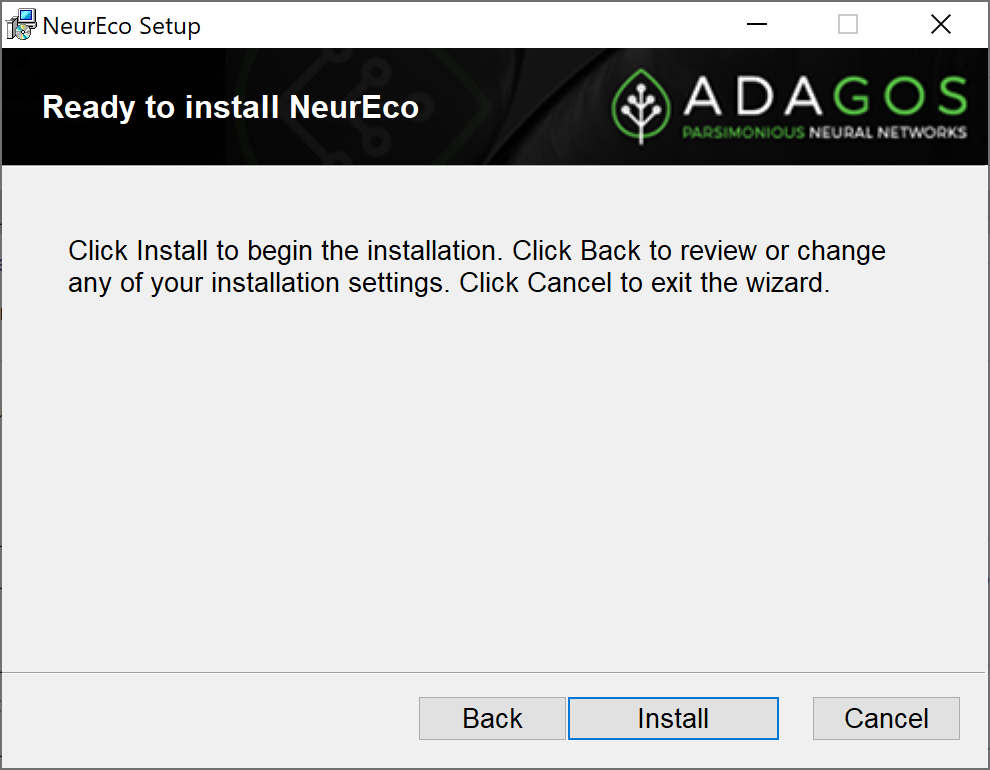
Step 3: Installation progress# |
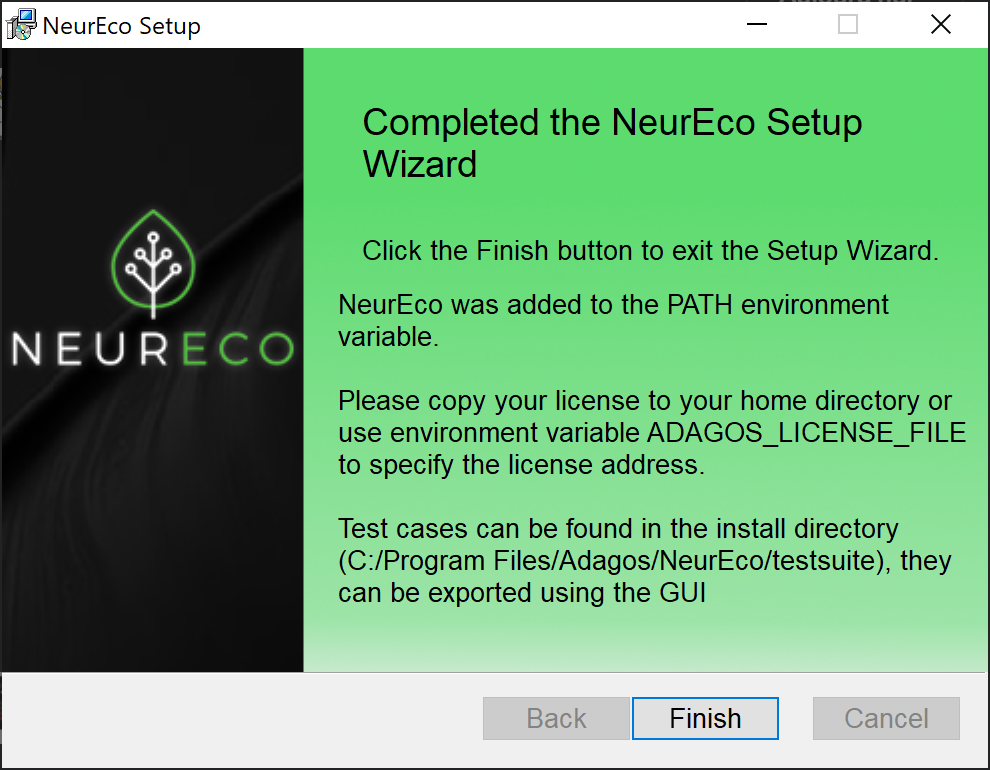
Step 4: Installation complete# |
NeurEco is now installed, by default in C:\Program Files\Adagos\NeurEco-5.0.
To start the GUI, open the Start menu folder NeurEco 5.0 and click
NeurEco 5.0 GUI. The same folder holds NeurEco 5.0 User Manual, which
opens this manual, and NeurEco 5.0 Examples, which opens the folder of the
example projects. The installer does not create a desktop icon and does not
add NeurEco to PATH: the command-line program is bin\neureco.exe in the
installation folder, so start it with its full path, for example in a Command Prompt:
"C:\Program Files\Adagos\NeurEco-5.0\bin\neureco.exe" hardwareinfo
In PowerShell, type & and a space before the quoted path.
If NeurEco 4.5 or 4.6 is installed, NeurEco 5.0 installs beside it: the old desktop icon still opens the old version, and a project file opens with the version installed last. See Moving from NeurEco 4.5 or 4.6.
Silent Installation
To install NeurEco without the wizard, for example from a deployment tool, run
this in a Command Prompt opened as administrator, in the folder that holds the
.msi and .cab files:
msiexec /i NeurEco-<version>-x86_64.msi /qn /norestart /l*v neureco-install.log
To install in another folder, add INSTALL_ROOT="D:\Apps\NeurEco-5.0" to the
command. To uninstall, run msiexec /x NeurEco-<version>-x86_64.msi /qn.
License Configuration
To run NeurEco, provide a valid license using one of these options:
Copy the license file, with its
.licextension, to your user folder (usuallyC:\Users\your_username)Create an environment variable called
ADAGOS_LICENSE_FILEwith the absolute path to the license file: in Settings, search for environment variables and choose Edit environment variables for your account, then start NeurEco againLaunch the GUI: when NeurEco finds no license file, a FlexNet window asks for its location and remembers it
Installation without Administrator Privileges
Unzip NeurEco-<version>-windows-portable.zip in a folder with a short path,
such as C:\NeurEco (see the long path support below): it creates there the
folder NeurEco-<version>-x86_64, which contains the same files as the
installed version. Creating C:\NeurEco needs no administrator rights, but every
user of the computer can then change the files in it: on a computer that other
people use, or if your computer does not let you create C:\NeurEco, use a
folder in your user folder instead, such as C:\Users\your_username\NeurEco.
Nothing is registered on the computer: no Start menu entry is created and PATH is
not changed. In the folder NeurEco-<version>-x86_64, the GUI is
guibin\NeurEcoGui.exe and the command-line program is bin\neureco.exe.
To use NeurEco from Python, install the Python library with pip (see
Installing the Python API).
Recommended: Enable Long Path Support
NeurEco installs and runs without this change, but by default Windows limits file paths to 260 characters. Model names often expand into long absolute paths that exceed this limit, which can cause errors when saving or loading models. To avoid this, we recommend enabling long path support:
In the Windows registry, set
LongPathsEnabledto1underHKEY_LOCAL_MACHINE\SYSTEM\CurrentControlSet\Control\FileSystem.Restart the computer for the change to take effect.
Note
This is a system-wide Windows setting (not specific to NeurEco), and editing the key requires administrator rights.
Installation with Administrator Privileges
NeurEco comes as two packages: neureco (the engines and the neureco
command) and neureco-gui (the GUI). Extract them from the archive you
downloaded, then install them with apt:
tar -xzf NeurEco-<version>-linux-debian.tar.gz
cd NeurEco-<version>-linux-debian
sudo apt install ./neureco_<version>_amd64.deb ./neureco-gui_<version>_amd64.deb
Note
The GUI uses the system’s Qt6, version 6.2 or newer (Ubuntu 22.04+ or Debian 12+). apt installs the Qt6 packages it needs.
The GUI package is optional: to install only the engines and the
neurecocommand, leave out theneureco-guipackage.
Everything is installed under /opt/neureco, and the commands neureco and
neurecoGUI (the GUI) are created in /usr/local/bin. The GUI package adds
NeurEco 5.0 to the applications menu and opens .neurecoproj files.
License Configuration
Set the environment variable ADAGOS_LICENSE_FILE to the full path of the license
file. For example, if you saved it as adagos.lic in your home directory, add this
line to ~/.profile (to ~/.bash_profile if you have one) and log in again:
export ADAGOS_LICENSE_FILE="$HOME/adagos.lic"
Without this variable, NeurEco finds the license file only when it is in the current
folder: it does not look in your home directory. Programs started from the applications
menu, such as the GUI, do not read ~/.bashrc.
Installation without Administrator Privileges
Extract the archive as above, then extract the package into a folder of your choice:
dpkg-deb -x neureco_<version>_amd64.deb <folder>
The command-line program is then <folder>/opt/neureco/bin/neureco. NeurEco
finds its libraries relative to its programs, so you do not need to set
LD_LIBRARY_PATH or install an OpenMP library. To use the GUI this way, also
extract neureco-gui_<version>_amd64.deb into the same folder and run
<folder>/opt/neureco/bin/neurecoGUI. The GUI still needs the system’s Qt6,
version 6.2 or newer.
Installation with Administrator Privileges
NeurEco comes as two packages: neureco (the engines and the neureco
command) and neureco-gui (the GUI). The GUI uses the system’s Qt6, version 6.2
or newer. Red Hat Enterprise Linux 10 includes it. On Red Hat Enterprise Linux 9
and compatible systems (Rocky Linux, AlmaLinux), Qt6 comes from EPEL: enable the
CRB and EPEL repositories before you install neureco-gui. On Rocky Linux 9 and
AlmaLinux 9:
sudo dnf install dnf-plugins-core
sudo dnf config-manager --set-enabled crb
sudo dnf install epel-release
On Red Hat Enterprise Linux 9:
sudo subscription-manager repos --enable codeready-builder-for-rhel-9-x86_64-rpms
sudo dnf install https://dl.fedoraproject.org/pub/epel/epel-release-latest-9.noarch.rpm
Then extract both packages from the archive you downloaded, and install them with dnf:
tar -xzf NeurEco-<version>-linux-redhat.tar.gz
cd NeurEco-<version>-linux-redhat
sudo dnf install ./neureco-<version>.x86_64.rpm ./neureco-gui-<version>.x86_64.rpm
Note
dnf installs the Qt6 packages the GUI needs. The
neurecopackage needs neither CRB nor EPEL.The GUI package is optional: to install only the engines and the
neurecocommand, leave out theneureco-guipackage.On Red Hat Enterprise Linux 8 and compatible systems, install only the
neurecopackage: Qt6 is not available there, soneureco-guidoes not install.
Everything is installed under /opt/neureco, and the commands neureco and
neurecoGUI (the GUI) are created in /usr/local/bin. The GUI package adds
NeurEco 5.0 to the applications menu and opens .neurecoproj files.
License Configuration
Set the environment variable ADAGOS_LICENSE_FILE to the full path of the license
file. For example, if you saved it as adagos.lic in your home directory, add this
line to ~/.bash_profile and log in again:
export ADAGOS_LICENSE_FILE="$HOME/adagos.lic"
Without this variable, NeurEco finds the license file only when it is in the current
folder: it does not look in your home directory. Programs started from the applications
menu, such as the GUI, do not read ~/.bashrc.
Installation without Administrator Privileges
Extract the archive as above, then extract the package into the current folder:
rpm2cpio neureco-<version>.x86_64.rpm | cpio -idmv
The command-line program is then opt/neureco/bin/neureco in that folder.
NeurEco finds its libraries relative to its programs, so you do not need to set
LD_LIBRARY_PATH or install an OpenMP library. To use the GUI this way, also
extract neureco-gui-<version>.x86_64.rpm into the same folder and run
opt/neureco/bin/neurecoGUI. The GUI still needs the system’s Qt6, version
6.2 or newer.
Installing the Python API#
The Python API needs Python 3.10 or newer, in a version that your PyTorch version supports: 3.10 to 3.14 for PyTorch 2.9, 3.10 to 3.13 for PyTorch 2.7 and 2.8. It provides all the GUI’s features and more.
Danger
Upgrading? Remove any older NeurEco Python API first. If an old version is still present, Python keeps loading it instead of the new one, which causes significant problems. Run this snippet before installing (removing the folder can need administrator rights):
import os, shutil

# Remove any old NeurEco left in Python's standard-library directory
old_neureco = os.path.join(os.path.dirname(os.__file__), "NeurEco")
if os.path.isdir(old_neureco):
    shutil.rmtree(old_neureco)
    print("Old NeurEco removed")
else:
    print("No old NeurEco found")
Warning
The Python API is available for Windows and Linux (x86-64) only. On Linux, it
needs glibc 2.35 or newer and the C++ runtime of GCC 12 or newer, as in Ubuntu 22.04
or later, Debian 12 or later and Red Hat Enterprise Linux 10 or later. pip does not
install it on Red Hat Enterprise Linux 8 or 9 and compatible systems: there, use the
RedHat packages for the neureco command and, on version 9, the GUI. See
Compatibility.
Tip
Developers: Standalone Python API Installation
If you only need the Python API (no GUI or CLI), you can skip the full platform installation process above. Simply:
Install NeurEco via pip (see below)
If you do not have a license yet, run
python -m NeurEco.hardware_infoto createhardware_info.txt, and send it to support@adagos.com (see Licensing)Set the
ADAGOS_LICENSE_FILEenvironment variable to the full path of your license file, or, on Windows only, copy the license file to your user folder (see Licensing)
That’s it - no platform-specific installation required!
Of course, if you have already completed the full installation (GUI + CLI), you can still install the Python API alongside it using pip.
Python Environment
On Linux, install NeurEco in a virtual environment: Debian 12, Ubuntu 23.04 and later
refuse pip installs into the system Python. For example (on Debian and Ubuntu, this
needs the package python3-venv):
python3 -m venv ~/neureco-env
. ~/neureco-env/bin/activate
Run the commands below in that environment.
Upgrading from the NeurEco 4.x Python Library
The INSTALL.py script of NeurEco 4.x copied the Python library into the
standard-library folder of your Python installation. Python searches that folder before
the packages that pip installs, even in a virtual environment created from that Python,
so import NeurEco would keep loading 4.x. Before you install NeurEco 5.0, check which
copy Python finds, in the environment where you will install it (on Linux, the virtual
environment above):
python -c "import importlib.util as u; s = u.find_spec('NeurEco'); print(s.origin if s else 'not found')"
If it prints not found, no copy is installed. If it prints a path that is not in a
site-packages folder (dist-packages for the system Python of Debian and Ubuntu),
for example C:\Python312\Lib\NeurEco\__init__.py on Windows or
/usr/lib/python3.12/NeurEco/__init__.py on Linux, delete that NeurEco folder
(this can need administrator rights) and run the command again. Once NeurEco 5.0 is
installed, the command must print a path in site-packages or dist-packages.
Installation
Like PyTorch, the NeurEco Python library comes in several editions: a CPU-only
edition and NVIDIA GPU editions, one per PyTorch version, each on its own Adagos
package index. Each package is built for one PyTorch minor version and requires it (for
example torch>=2.9,<2.10). pip installs the package from the Adagos package index of
your edition and the PyTorch build of that edition from the PyTorch package index,
together with NumPy (1.24 or newer) and Matplotlib from PyPI. To run exported ONNX
models, install onnxruntime or onnxruntime-gpu yourself.
The Adagos package indexes are in https://adagos.com/downloads/neureco5/whl/ and the PyTorch package indexes in https://download.pytorch.org/whl/:
Edition |
PyTorch |
Adagos package index |
PyTorch package index |
|---|---|---|---|
CPU only |
2.9 |
|
|
NVIDIA GPU |
2.9 |
|
|
NVIDIA GPU |
2.8 |
|
|
NVIDIA GPU |
2.7 |
|
|
Install your edition with one pip command that gives both package indexes with
--extra-index-url. The command is the same on Windows and Linux; on Linux, run it in
the virtual environment created above.
CPU-only edition
pip install "neureco~=5.0" --extra-index-url https://download.pytorch.org/whl/cpu --extra-index-url https://adagos.com/downloads/neureco5/whl/cpu/
NVIDIA GPU edition, PyTorch 2.9
pip install "neureco~=5.0" --extra-index-url https://download.pytorch.org/whl/cu128 --extra-index-url https://adagos.com/downloads/neureco5/whl/torch2.9/
NVIDIA GPU edition, PyTorch 2.8
pip install "neureco~=5.0" --extra-index-url https://download.pytorch.org/whl/cu128 --extra-index-url https://adagos.com/downloads/neureco5/whl/torch2.8/
NVIDIA GPU edition, PyTorch 2.7
pip install "neureco~=5.0" --extra-index-url https://download.pytorch.org/whl/cu126 --extra-index-url https://adagos.com/downloads/neureco5/whl/torch2.7/
The PyTorch package index provides the PyTorch build of the edition: on Windows,
PyTorch on PyPI is CPU-only, and on Linux, it includes CUDA, which makes a large
download that the CPU-only edition does not need. Keep "neureco~=5.0" as written:
PyPI has a placeholder package named neureco, which pip would install whenever it
cannot use the Adagos package: when it cannot read the Adagos package index, or when
your Python version or system is not supported. With ~=5.0, pip stops with an error
instead (see Troubleshooting).
Behind a proxy or a firewall, pip needs adagos.com, pypi.org,
files.pythonhosted.org, download.pytorch.org, download-r2.pytorch.org and,
for the NVIDIA GPU editions on Linux, pypi.nvidia.com. If pip cannot reach the
PyTorch package index, it takes PyTorch from PyPI without an error, which on Windows
gives the CPU-only build.
Use one Adagos package index at a time, on the command line and in your pip
configuration: every edition is named neureco, so with several Adagos indexes pip
can install an edition other than the one you chose, for example a GPU edition with a
CPU-only PyTorch.
pip keeps the neureco and torch packages that are already installed when their
versions fit, even if they belong to another edition or if PyTorch is a CPU-only build:
to change edition, first run pip uninstall neureco torch, or use a new virtual
environment. To update NeurEco to a newer build, run the command of your edition with
--upgrade. Do not use --upgrade to change edition: it can replace neureco
with another edition and keep the installed PyTorch build. To install a wheel file
downloaded from https://adagos.com/downloads/neureco5/whl/ instead, follow the
README.txt file in that folder.
The package index of each edition holds only the latest build of NeurEco 5.0: once a
newer build is published, pip can no longer install an earlier one from it. A
requirement that names a build, such as the line neureco==5.0.<build>+torch... that
pip freeze writes, then fails with No matching distribution found. In
requirement files, write neureco~=5.0 instead, or keep the wheel file of the build
you need.
GeForce RTX 50 series and other NVIDIA GPUs of compute capability 10.0 or higher need a PyTorch build for CUDA 12.8 or later: use the PyTorch 2.8 or 2.9 edition. For the NVIDIA driver version, see GPU Setup.
Note
NeurEco packages carry their PyTorch build at the end of the version, for example
5.0.1974+torch2.9.cu128 for a GPU edition or 5.0.1974+torch2.9.cpu for the
CPU-only edition. On Linux, the GPU editions for PyTorch 2.9 and 2.8 end in
cu129 and run with the CUDA 12.8 build of PyTorch given in the table above.
The GUI and the neureco command include their own
PyTorch 2.9; the Python library uses the PyTorch installed in your Python
environment. If that PyTorch is not the version the NeurEco package was built for,
NeurEco shows a warning when it is imported.
Tip
The GUI functionality Export NeurEco to Python facilitates the initial transition from using the GUI to using the Python API. See the detailed documentation for more information.
Next Steps#
Now that NeurEco is installed: