
Best Practices
Contents
Best Practices#
This page provides tips and best practices to get the most out of NeurEco and achieve optimal model performance.
In this guide
Validation Data: The Foundation#
The validation set plays a crucial role during the learning process, as it stops the enrichment when overfitting is detected. If this set is not chosen carefully, the building process may stop too early or, on the contrary, end with an oversized network that overfits.
Using Automatic Validation Selection#
The automated selection made by NeurEco is usually what best suits the learning process. However, in some cases the end result may be sensitive to the validation data percentage setting. If the resulting model is not satisfactory, it might be helpful to explore this setting.
Providing Your Own Validation Data#
If you prefer to provide the validation data yourself, it is crucial that it accurately represents how the model will be used on new data.
Example: Time-Series Data
Suppose your data comes from time series (a sensor measuring a quantity, for example) and you have several trajectories to form the learning and validation sets.
Warning
Bad approach: Selecting individual points from every trajectory and assigning them to validation. This would likely lead to overfitting, as each of these points would have very similar neighbors in the learning set.
Tip
Good approach: Picking entire trajectories and putting them in the validation set. This ensures that the validation data represents truly unseen scenarios.
The Convex Hull Principle#
Another important aspect of validation selection is the convex hull.
If possible, provide a learning set that contains the points forming the convex hull of both the validation and the test data. This ensures that your model learns the boundaries of your input space effectively.
Normalization: Choose Wisely#
Output normalization is particularly sensitive, as it can change the cost function and affect how NeurEco prioritizes different outputs.
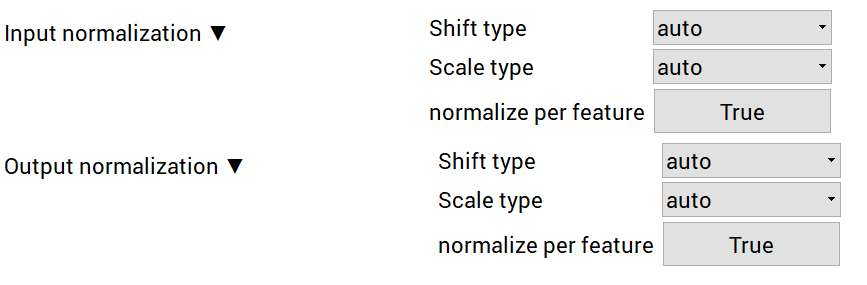
NeurEco Normalization options#
When to Use “Normalize Per Feature = True”#
Use this setting when:
Fitting targets of different kinds (e.g., temperature and pressure)
You want to give outputs equal importance during training
Example: Predicting both temperature (range: 0-100) and pressure (range: 0-1000) simultaneously.
When to Use “Normalize Per Feature = False”#
Use this setting when:
Fitting quantities of the same kind (e.g., a set of temperatures)
Working with field data where all outputs represent the same physical quantity
Example: Predicting temperature at multiple spatial locations.
Custom Normalization#
If neither of these options suits your needs:
Normalize your data yourself before passing it to NeurEco
Turn off output normalization in the NeurEco settings
Remember to apply the inverse normalization to model outputs during deployment
Note
By default, input normalization is tuned to suit NeurEco. If your inputs are of the same kind (a field, for example), consider setting “normalize per feature” to false for the inputs as well.
Exploring Checkpoints#
NeurEco saves intermediate models as checkpoints throughout the learning process. These can be valuable in several scenarios.
Early Stopping for Efficiency#
Some builds can take a long time. The model may already be accurate enough while the enrichment keeps running for a small gain in accuracy.
Tip: Start exploring the capabilities of your model with the existing checkpoints while the build continues. You might find that an earlier, smaller model meets your accuracy requirements.
Avoiding Overfitting#
The final model may slightly overfit the data.
Tip: Check whether an earlier checkpoint gives better predictions on your test data. Sometimes a smaller model generalizes better than the final one.
Note
Is it safe to choose a checkpoint using the test data? Yes. NeurEco never uses the test set while building: the topology growth and the early-stopping decision are driven by the training and validation data only. The checkpoints are simply the models saved during the build, each one fitting the validation data better than the previous one, and none of them is fitted to your test data. You are therefore comparing a small, ordered family of models on genuinely unseen data, which gives a faithful picture of their generalization, rather than searching a large space of configurations against the test labels, where a model could match the test set by chance. If you need a completely independent final estimate of accuracy, keep a separate hold-out set aside and evaluate the chosen checkpoint on it once.
Exporting from Checkpoints#
The model from every checkpoint can be exported in all supported formats. You’re not limited to the final model.
GPU Usage#
NeurEco can leverage GPU acceleration for faster training.
When to Use GPU#
Large datasets with many samples
Complex problems requiring deeper networks
When training time is a concern
When CPU May Be Sufficient#
Small to medium datasets
Quick prototyping and experimentation
When GPU memory is limited
Note
GPU acceleration requires a properly installed NVIDIA driver. See the Resources section for GPU setup instructions.
Data Preparation Tips#
Quality Input Data#
Remove duplicates: Duplicate samples can bias the learning process
Handle missing values: Either impute them appropriately or remove incomplete samples
Check for outliers: Extreme outliers can significantly impact model training
Feature Engineering#
Domain knowledge matters: Include all relevant input features; missing important features will limit model accuracy
Feature independence: NeurEco works best when input features carry independent information
Scale awareness: While NeurEco handles normalization, features with extremely different scales may benefit from preprocessing
Data Efficiency: A NeurEco Strength#
One of NeurEco’s key advantages is its data efficiency. Thanks to its parsimonious approach, NeurEco can achieve excellent results with significantly less training data than traditional deep learning frameworks.
Note
In real-world cases, NeurEco has achieved better results using only 5% of the training data compared to competitors using the full dataset. The remaining 95% was moved to the test set, and NeurEco still outperformed them.
What this means for you:
You don’t need massive datasets to get started
More of your data can be reserved for validation and testing
Smaller training sets often lead to faster build times
Recommended approach:
Rather than following fixed split ratios, we recommend:
Start with a modest training set (even 20-30% of your data)
Use a meaningful validation set that represents real-world usage
Reserve a substantial test set to verify generalization
If results aren’t satisfactory, gradually increase the training data
The optimal split depends on your specific problem, data characteristics, and accuracy requirements. NeurEco’s checkpoint system allows you to experiment and find what works best for your use case.
Model Deployment Tips#
Choosing Export Format#
Native NeurEco Formats
All NeurEco models can be saved in their native format for later use within NeurEco:
.ednn— Tabular models (Regression, Classification, Compression).ernn/.ecnn— Dynamic models (ODE, Convolutional Dynamic).efnn— Frequential models (PFS)
Deployment Formats
For deployment outside NeurEco, several export formats are available. Note that availability varies by solution:
Format |
Best For |
Availability |
|---|---|---|
FMU |
Simulation environments (Simulink, Dymola, etc.) |
All solutions |
ONNX |
Cross-platform deployment, ML framework integration |
Tabular |
C/C++ |
Embedded systems, high-performance applications |
Tabular |
VBA |
Excel-based applications and spreadsheets |
Tabular |
Note
Export to deployment formats requires an embed license. See the detailed documentation for each solution for a complete list of available export options.
Precision Selection#
double: Maximum accuracy, largest file size
float: Good balance of accuracy and size
float16: Smallest size, suitable when memory is constrained
Troubleshooting Common Issues#
Model Not Converging#
Check whether your validation data is representative
Try adjusting the validation percentage
Ensure input features are relevant to the output
Poor Generalization#
An inappropriate choice of the training and validation sets can mislead the training process, causing NeurEco to stop too early or too late, which can in turn affect the generalization of the model. If you experience poor generalization:
Re-examine your validation set selection — Ensure it truly represents how the model will be used in production. For time-series data, use entire trajectories rather than individual points (see Validation Data: The Foundation above)
Check for data leakage — Make sure no information from validation/test sets is accidentally present in training data
Review checkpoints — An earlier checkpoint may generalize better than the final model
Verify training data coverage — Ensure your training data covers the expected input range (convex hull principle)
Build Takes Too Long#
Consider using GPU acceleration
Check whether an earlier checkpoint already meets your accuracy needs
Check whether all input features are necessary
Keep the default CPU mode (CPU Performance and Reproducibility):
MKL_CBWR=COMPATIBLEmakes builds slower
Summary#
Key best practices to remember:
Validation data should represent real-world usage scenarios
Normalization settings should match your data characteristics
Checkpoints are valuable for finding the optimal model
Data quality directly impacts model performance
Export format should match your deployment environment
Next Steps#
Now that you know these best practices:
Explore the Solutions Guide for detailed documentation on your chosen solution
Check the Reference section for complete API documentation
Visit the Resources section for troubleshooting and FAQ