
Your First Model
Contents
Your First Model#
This tutorial walks you through building, evaluating, and exporting your first NeurEco model using the Tabular Regression template. By the end, you’ll understand the core NeurEco workflow that applies to all solutions.
We’ll use the Energy Consumption dataset provided with the NeurEco installation (it ships as the EnergyConsumption example folder — see Examples for the install location), which predicts a house’s energy consumption based on environmental factors.
Choose your preferred interface below. All three approaches follow the same workflow; the exact model can differ slightly depending on the settings each one uses.
In this tutorial
The Dataset#
The Energy Consumption dataset contains:
Inputs (5 features): Temperature difference, wind direction, wind speed, sunshine intensity, and relative humidity
Output (1 feature): Energy consumption
The dataset is split into training and test files:
x_train.csv/y_train.csv- Training datax_test.csv/y_test.csv- Test data
Building the Model#
The first step is to build a NeurEco model using your training data.
1. Start NeurEco and create a new project
Launch the NeurEco GUI and select Tabular Regression template.
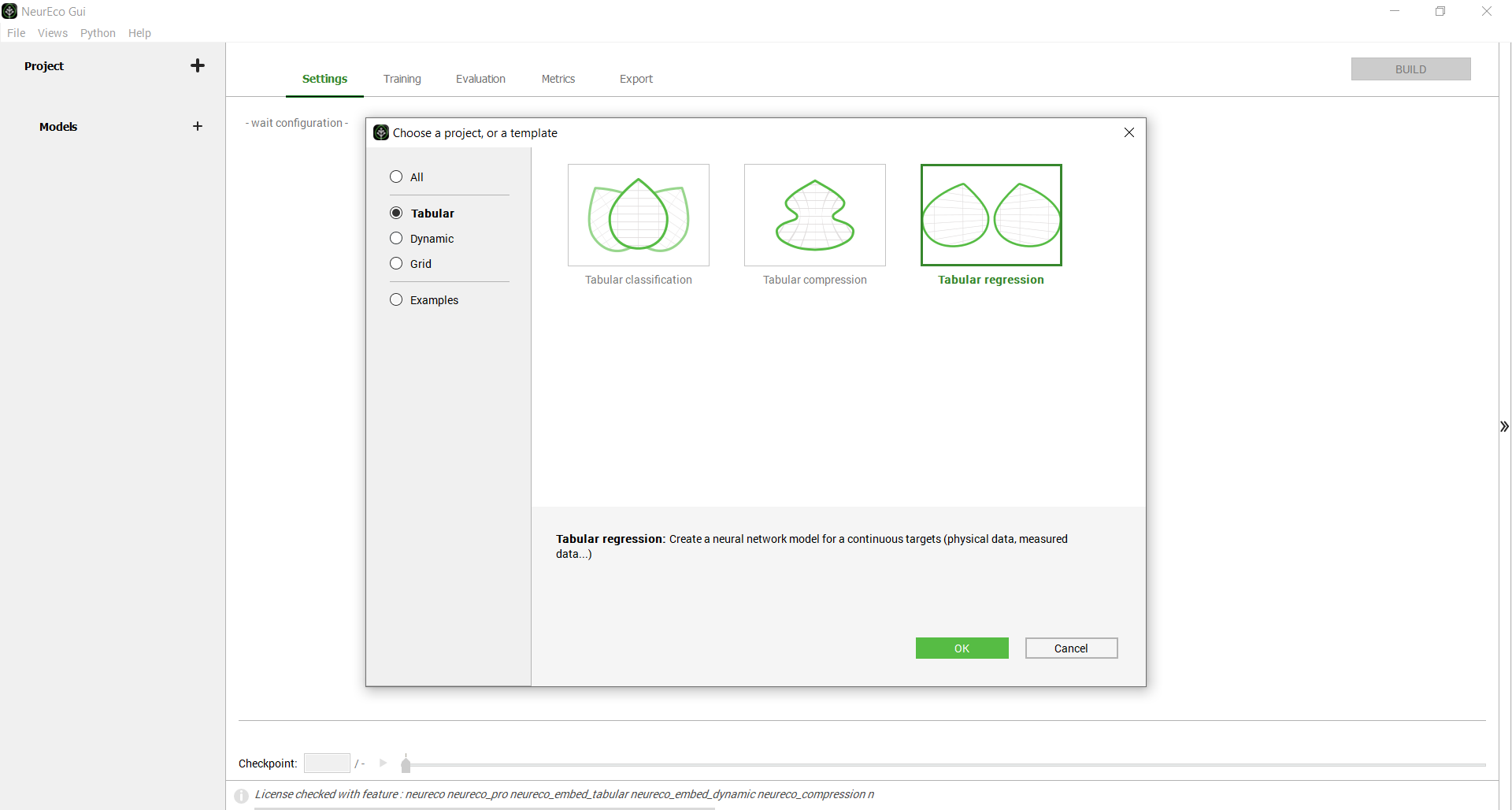
Create a new NeurEco Regression project#
2. Configure the build settings
Set the building parameters and provide the training data:
Click on Training data and select your
x_train.csvandy_train.csvfilesAdjust validation percentage if needed (default is usually appropriate)
Configure GPU usage if available
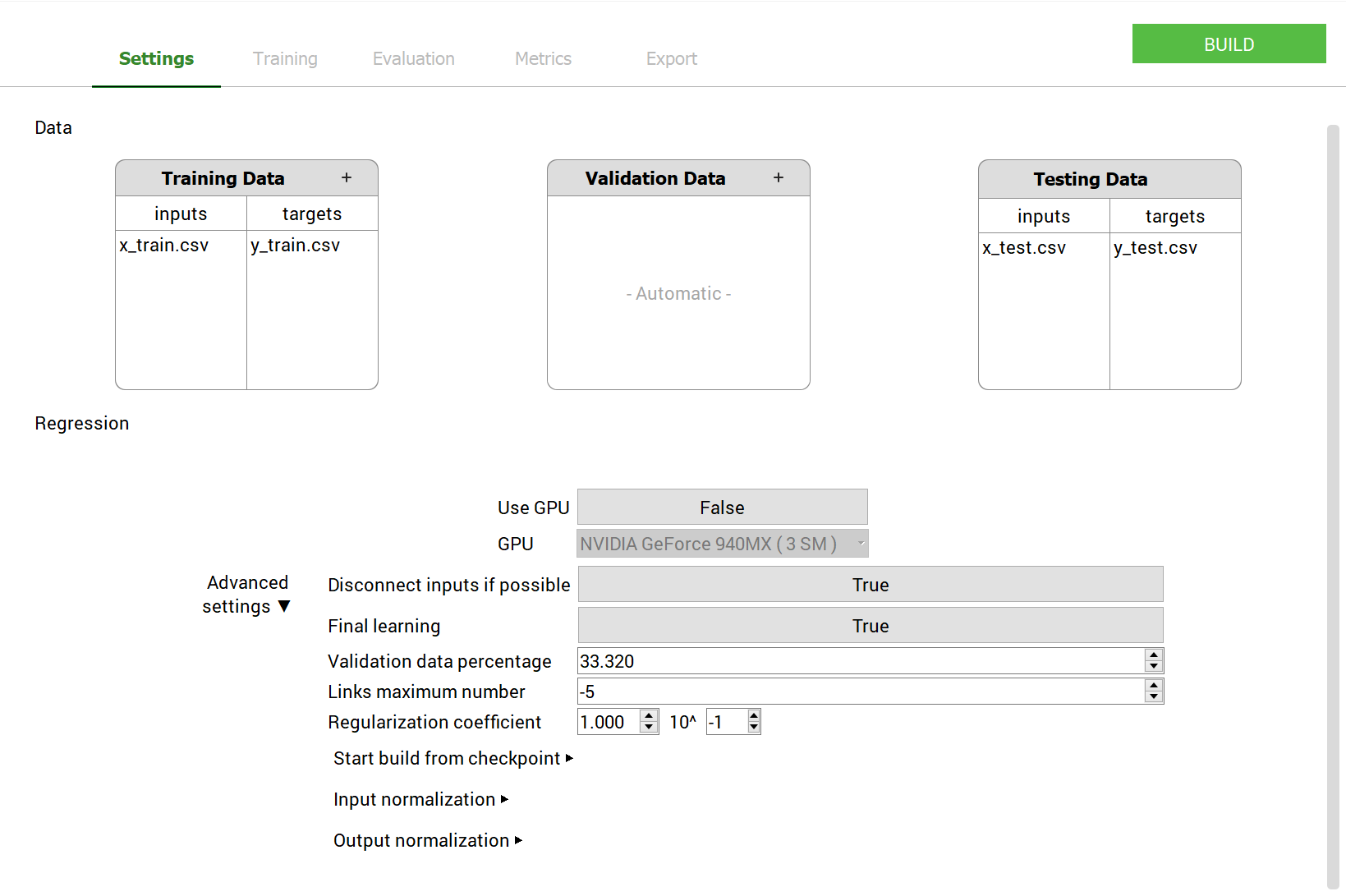
Setting the building parameters for a Tabular Regression model#
3. Start the build
Click the BUILD button. NeurEco will automatically:
Start from the smallest possible network
Enrich it step by step
Save checkpoints along the way
Stop when optimal accuracy is reached
You can monitor the training progress in real-time. Once the first checkpoint is saved, the Evaluation, Metrics, and Export panels become available.
1. Import the required libraries
from NeurEco import NeurEcoTabular as Tabular
import numpy as np
2. Load the datasets
# Load training data
x_train = np.genfromtxt("./x_train.csv", delimiter=";", skip_header=True)
y_train = np.genfromtxt("./y_train.csv", delimiter=";", skip_header=True)
y_train = np.reshape(y_train, (-1, 1))

# Load test data
x_test = np.genfromtxt("./x_test.csv", delimiter=";", skip_header=True)
y_test = np.genfromtxt("./y_test.csv", delimiter=";", skip_header=True)
y_test = np.reshape(y_test, (-1, 1))
3. Initialize the model
regression_model = Tabular.Regressor()
4. Configure and run the build
building_configuration = Tabular.RegressorBuildConfig(
    # Required fields
    input_data=x_train,
    output_data=y_train,
    # Optional fields
    write_model_to="./EnergyConsumptionModel/EnergyConsumption.ednn",
    checkpoint_address="./EnergyConsumptionModel/EnergyConsumption.checkpoint",
    valid_percentage=33.33,
    inputs_shifting="min_centered",
    inputs_scaling="max_centered"
)

regression_model.build(building_configuration)
The model will train automatically, displaying progress in the console.
1. Create a build configuration file
In the folder that holds the data files, create a file named build.conf
with the following content:
{
    "neurecoRegression_build": {
        "DevSettings": {
            "disconnect_inputs_if_possible": true,
            "final_learning": true,
            "initial_beta_reg": 0.1,
            "parameter_number_limit": 0,
            "valid_percentage": 33.33
        },
        "UserSettings": {
            "gpu_id": 0,
            "use_gpu": false
        },
        "checkpoint_address": "./EnergyConsumption/EnergyConsumption.checkpoint",
        "field_output": false,
        "exc_filenames": [
            "x_train.csv"
        ],
        "freeze_structure": false,
        "input_normalization": {
            "normalize_per_feature": true,
            "scale_type": "max_centered",
            "shift_type": "min_centered"
        },
        "output_filenames": [
            "y_train.csv"
        ],
        "output_normalization": {
            "normalize_per_feature": true,
            "scale_type": "auto",
            "shift_type": "auto"
        },
        "resume": false,
        "starting_from_checkpoint_address": "",
        "start_build_from_model_number": -1,
        "test_exc_filenames": [
            "x_test.csv"
        ],
        "test_output_filenames": [
            "y_test.csv"
        ],
        "write_model_to": "./EnergyConsumption/EnergyConsumption.ednn"
    }
}
2. Run the build command
neureco Regression build build.conf
NeurEco will train the model and save it to the specified location.
Evaluating the Model#
After building, evaluate your model’s performance on test data.
1. Switch to the Evaluation panel
Click on the Evaluation tab in the NeurEco GUI.
2. Select the data and evaluate
Choose the dataset to evaluate (Test data)
Select specific samples to visualize
NeurEco automatically updates the evaluation display
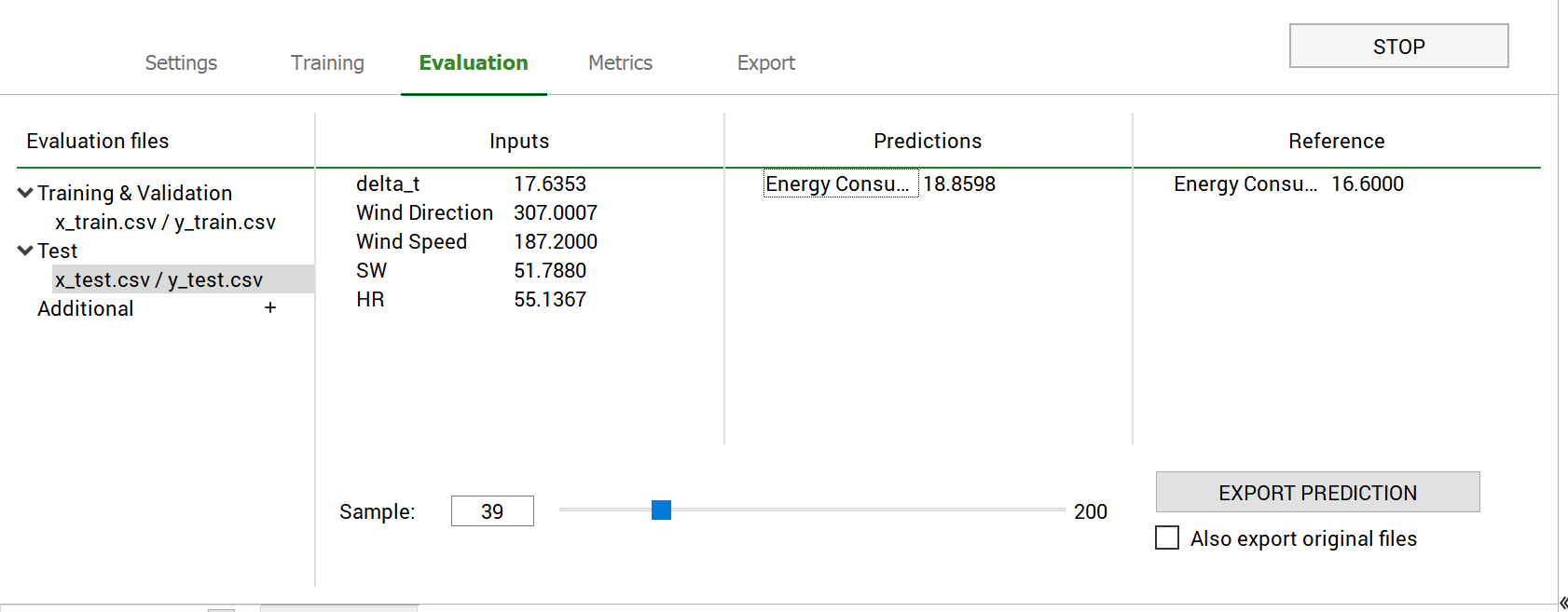
Evaluating a Tabular Regression model using the GUI#
The evaluation shows predicted vs. actual values, allowing you to assess model accuracy.
Evaluate on test data
# Evaluate the model
neureco_test_outputs = regression_model.evaluate(x_test)

# Compare with actual values
print("Predicted shape:", neureco_test_outputs.shape)
print("Actual shape:", y_test.shape)

# Calculate error metrics
mse = np.mean((neureco_test_outputs - y_test) ** 2)
print(f"Mean Squared Error: {mse}")
1. Create an evaluation configuration file
In the same folder, create a file named eval.conf:
{
    "neurecoRegression_evaluate": {
        "exc_filenames": [
            "x_test.csv"
        ],
        "neureco_filename": "./EnergyConsumption/EnergyConsumption.ednn",
        "optional_output_reference": [
            "y_test.csv"
        ],
        "write_model_output_to_directory": "./EvaluationResults"
    }
}
2. Run the evaluation command
neureco Regression evaluate eval.conf
Results will be saved to the specified output directory.
Exporting the Model#
Export your trained model for deployment in various formats.
1. Switch to the Export panel
Click on the Export tab in the NeurEco GUI.
2. Select precision and export
Select the precision (float64, float32, float16) when applicable
Click the button for the format you want (C, ONNX, FMU, VBA, …) — the model is exported as soon as you click it (you may be prompted for a destination)
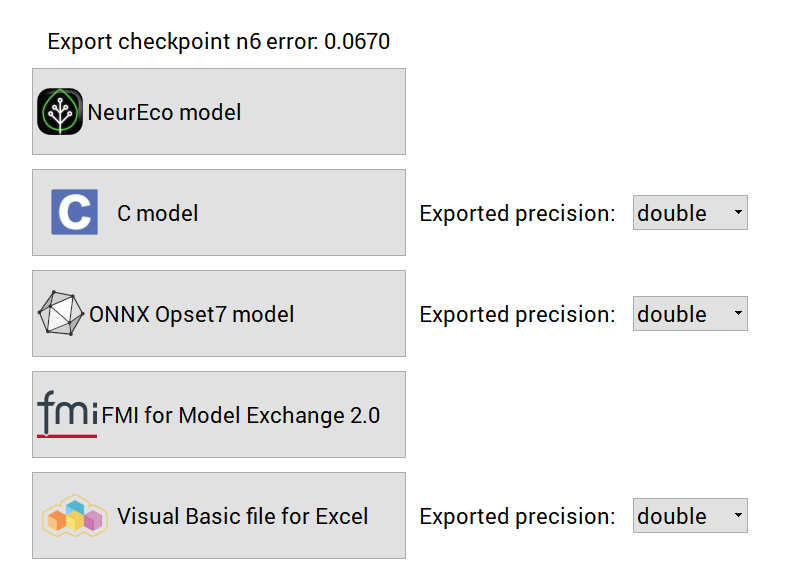
Exporting a Tabular Regression model using the GUI#
Export to various formats
# Export to C header file
regression_model.export_c(
    "./EnergyConsumptionModel/EnergyConsumption.h",
    precision="float64"
)

# Export to ONNX format
regression_model.export_onnx(
    "./EnergyConsumptionModel/EnergyConsumption.onnx",
    precision="float16"
)

# Export to FMU (Functional Mock-up Unit)
regression_model.export_fmu(
    "./EnergyConsumptionModel/EnergyConsumption.fmu"
)

# Export to VBA for Excel
regression_model.export_vba(
    "./EnergyConsumptionModel/EnergyConsumption.bas",
    precision="float32"
)
Note
Exporting to these formats requires an embed license.
Clean up when done
# Delete model from memory when no longer needed
regression_model.delete()
Run export commands
# Export to C
neureco Regression exportC ./EnergyConsumption/EnergyConsumption.ednn ./EnergyConsumption.h float64

# Export to ONNX
neureco Regression exportONNX ./EnergyConsumption/EnergyConsumption.ednn ./EnergyConsumption.onnx float16

# Export to VBA
neureco Regression exportVBA ./EnergyConsumption/EnergyConsumption.ednn ./EnergyConsumption.bas float32

# Export to FMU (last argument: platform flag, 3 = Windows and Linux)
neureco Regression exportFMU ./EnergyConsumption/EnergyConsumption.ednn ./EnergyConsumption.fmu 3
Note
Export to these formats requires an embed license.
Summary#
Congratulations! You’ve learned the core NeurEco workflow:
Build - Provide training data and let NeurEco automatically create an optimal neural network
Evaluate - Test the model’s performance on unseen data
Export - Deploy the model in your preferred format
This same workflow applies to all NeurEco solutions (Tabular, Dynamic, PFS) and all templates.
Next Steps#
Learn best practices to optimize your models
Explore the Solutions Guide for detailed documentation on your chosen solution
Try other templates: Classification, Compression, ODE, Convolutional Dynamic, or PFS